25 lines
1.9 KiB
Markdown
25 lines
1.9 KiB
Markdown

|
# Themes
|
|||
|
|
|
|||
|
|
Wave has full theme support, which means you can separate your views into separate themes. This will make it easier to create new versions of your site and revert back if needed. This will also help you separate a lot of your back-end logic with the front-end.
|
|||
|
|
|
|||
|
|
In this section you will learn where the themes are located and how to activate a specific theme.
|
|||
|
|
|
|||
|
|
## Theme Location
|
|||
|
|
|
|||
|
|
Every theme is located inside of the `resources/views/themes` folder. When you install Wave there will only be 1 theme available, the `tailwind` theme. If you <a href="https://devdojo.com/wave#pro" target="_blank">Upgrade to a Pro account</a>, you will gain access to the Wave Pro repo, which currently has another theme available, the `tallstack` theme. Each theme is responsible for managing their own assets. In each theme you will find a `package.json` which contains the front-end dependencies to run webpack and build each one.
|
|||
|
|
|
|||
|
|
## Theme Assets
|
|||
|
|
|
|||
|
|
To compile a theme's assets you can navigate into the theme folder and run `npm install`, after you install the node dependencies you can run `npm run watch` to start your asset watcher and develop your theme. When you are ready to compile and minify your assets for production you will want to run `npm run production`.
|
|||
|
|
|
|||
|
|
## Activating Themes
|
|||
|
|
|
|||
|
|
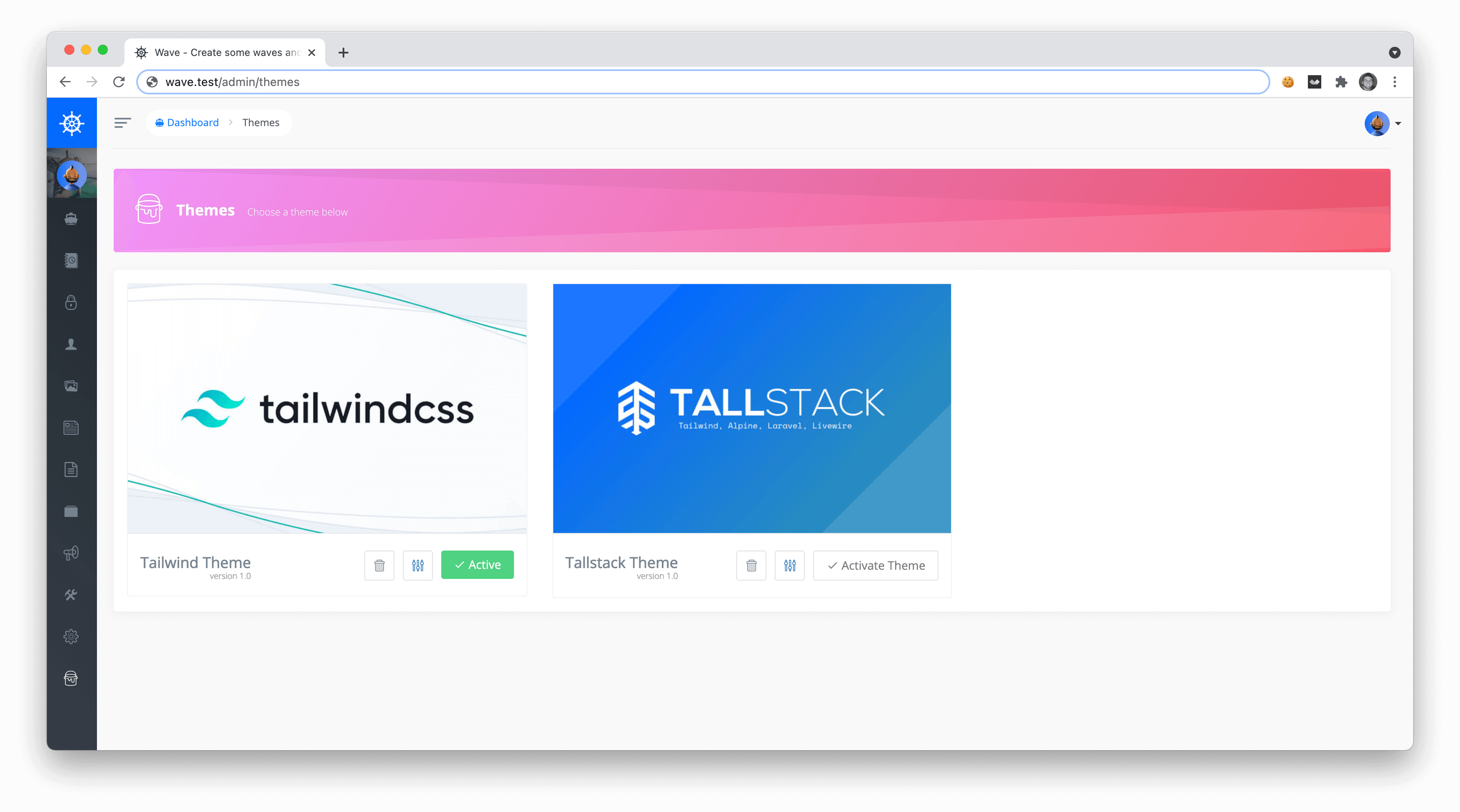
If you are logged in as an admin user and you visit visit the <a href="/admin/themes" target="_blank">`/admin/themes`</a> section of your application you’ll see the current themes available in your app.
|
|||
|
|
|
|||
|
|
|
|||
|
|
|
|||
|
|
To activate a Theme you can simply click the Activate button for the current theme you would like to activate, and that will be the current active theme.
|
|||
|
|
|
|||
|
|
|
|||
|
|
For more information on customizing and modifying themes, you may want to check out the <a href="https://devdojo.com/wave/videos" target="_blank">Wave Videos</a> to learn more about how you can customize and build new themes for your application.
|