# Notifications
Wave leverages the default Laravel Notification system and gives you an elegant UI to display those notifications in your app.
- [When to Use Notifications](#when-to-use)
- [Creating Notifications](#create-notifications)
- [Viewing Notifications](#viewing-notifications)
---
### When to use Notifications
When to use notifications in your application will be up to you. Here are a few examples:
1. Notify users in a forum discussion when a new response is added.
2. Notify a user when someone follows them.
3. Notify the user when someone sends them a message.
You get the general idea right? You are the creator and you can decide what kind of notifications your user will receive.
### Creating Notifications
We have built the Wave notifications on top of the default Laravel notifications, which are very simple to use and easy to implement.
> If you haven't checked out the Laravel notifications documentation, head on over to the official documentation at laravel.com/docs/notifications
We can create a new notification by running the following artisan command:
```php
php artisan make:notification TestNotification
```
You will see a new file at: `/app/Notifications/TestNotification`. Scroll down to where you see:
```php
public function via($notifiable)
{
return ['mail'];
}
```
and change this to:
```php
public function via($notifiable)
{
return ['database'];
}
```
Then scroll down to where you see:
```php
public function toArray($notifiable)
{
return [
//
];
}
```
And replace it with:
```php
public function toArray($notifiable)
{
return [
'title' => 'My Title Here',
'icon' => '/storage/users/default.png',
'body' => 'This is the body content of the notification... Yada yada yada',
'link' => 'https://google.com'
];
}
```
Next, let's create a few notifications. We can do this by using the `tinker` command:
```php
php artisan tinker
```
Inside of the tinker command you will want to run the following command a few times:
```php
App\Models\User::find(1)->notify(new App\Notifications\TestNotification);
```
After you have run that command, let's move on to learning how the user can view those notifications:
### Viewing Notifications
Login to the application with the admin user and visit any page in your application. You'll notice a bell icon on the top right with a number indicating how many unread notifications you have.
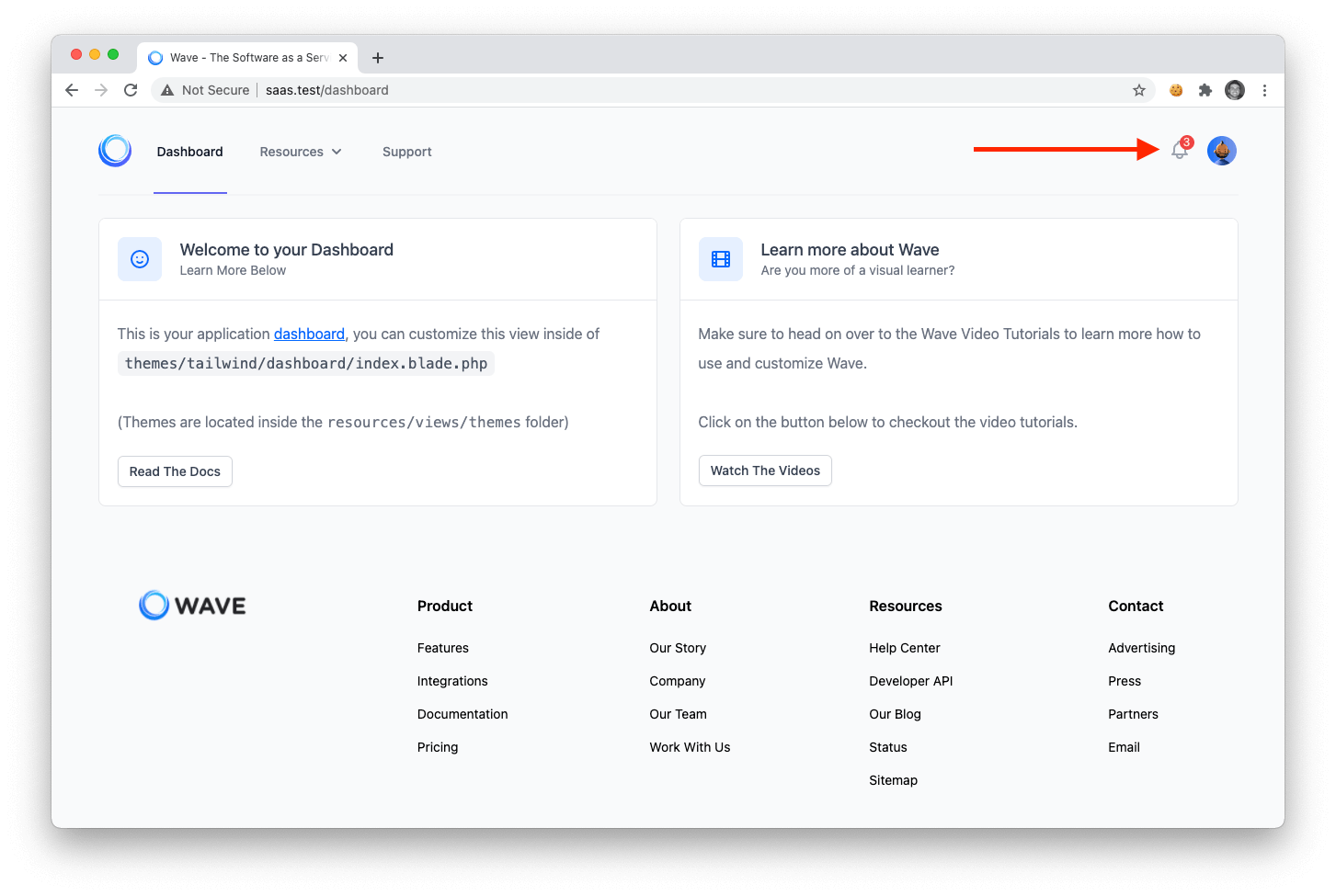
When you hover over the bell icon you will see a nice dropdown displaying the current user notifications.
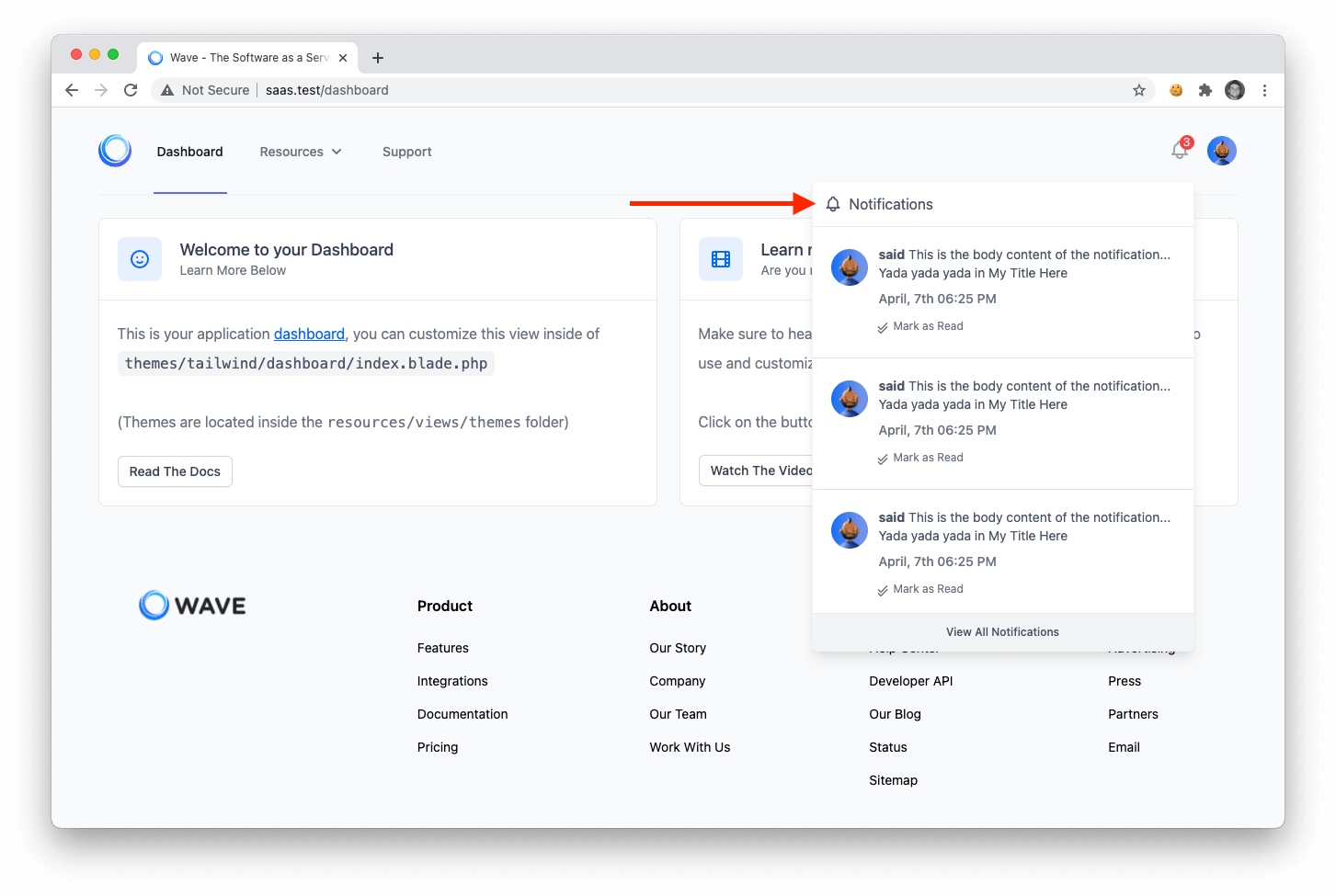
The user can additionally, click on the `View All Notifications` button at the bottom of the dropdown and they will be taken to their notifications page where they can view all their notifications.