
61 lines
3.2 KiB
Markdown
61 lines
3.2 KiB
Markdown
# Billing
|
|
|
|
Wave comes packaged with integrated billing. This means that you can charge your customers to access your application or features in your application.
|
|
|
|
Wave integrates seamlessly with the <a href="https://paddle.com" target="_blank">Paddle</a> Payment Platform.
|
|
|
|
- [Create a Paddle Account](#paddle-account)
|
|
- [Add Paddle API Credentials](#paddle-credentials)
|
|
- [Test Billing Process](#test-billing)
|
|
|
|
<a name="paddle-account"></a>
|
|
## Create a Paddle Account
|
|
|
|
In order to integrate your application with Paddle you will need to signup for an account at <a href="https://paddle.com/signup" target="_blank">paddle.com/signup</a>. It may take a few days to get access to your Paddle account before you're ready to go live. In the meantime, you can signup for a Sandbox account at <a href="https://sandbox-vendors.paddle.com/signup" target="_blank">sandbox-vendors.paddle.com/signup</a>, and start testing out your payment functionality right away.
|
|
|
|
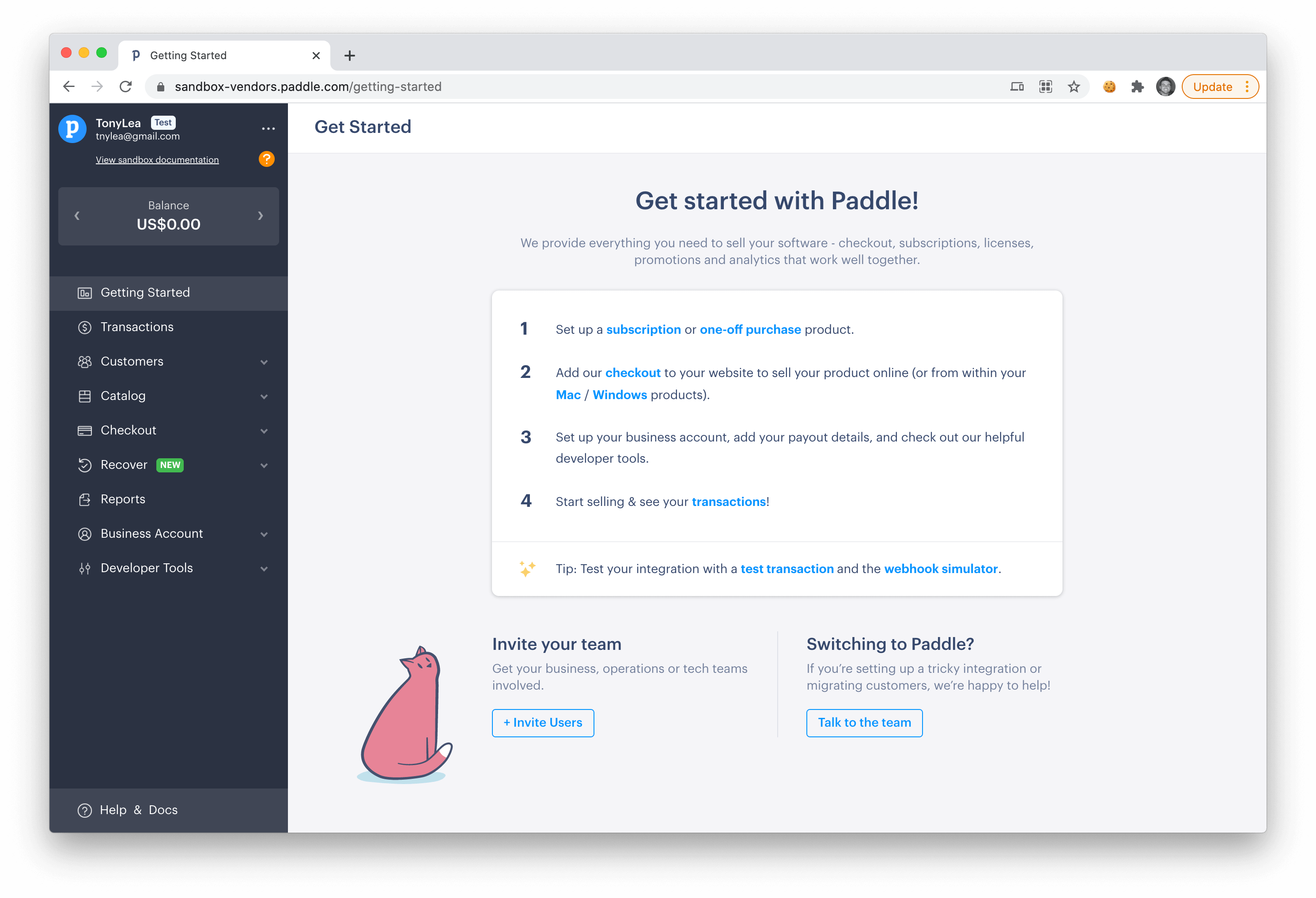
After you have created your Paddle Account you'll be able to login and see your dashboard, which should look similar to the following:
|
|
|
|
|
|
|
|
Next, let's add your Paddle API credentials.
|
|
|
|
<a name="paddle-credentials"></a>
|
|
### Add Paddle API Credentials
|
|
|
|
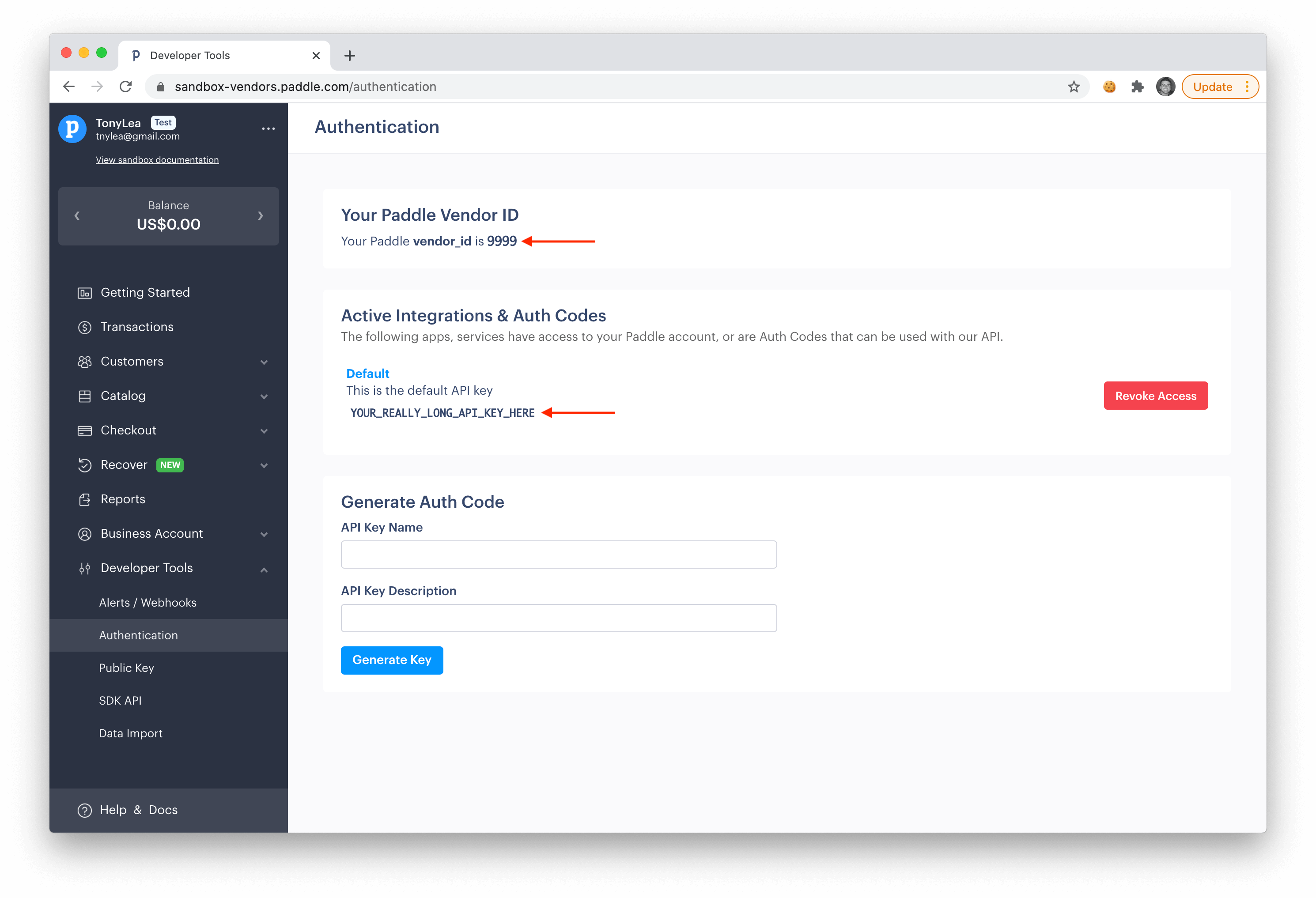
Inside of your Paddle Dashboard you'll see a button under the **Developer Tools** menu, called **Authentication**, click on that button to get your API Authentication Credentials.
|
|
|
|
|
|
|
|
On this page you'll find your **Vendor ID** and your **API Auth Code**. These are the credentials that you will need to add to your `.env` file for `PADDLE_VENDOR_ID` and `PADDLE_VENDOR_AUTH_CODE`:
|
|
|
|
```
|
|
PADDLE_VENDOR_ID=9999
|
|
PADDLE_VENDOR_AUTH_CODE=YOUR_REALLY_LONG_API_KEY_HERE
|
|
PADDLE_ENV=sandbox
|
|
```
|
|
|
|
After adding these credentials, your application has been successfully configured with Paddle.
|
|
|
|
#### Ready to go Live?
|
|
|
|
When you are ready to go live and take live payments you'll want to change the `PADDLE_ENV` from `sandbox` to `live`, and you'll be ready to accept live payments 💵
|
|
|
|
<a name="test-billing"></a>
|
|
### Test Billing Process
|
|
|
|
Before you can test out the full billing process, you will need to add a few [Subscription Plans](/docs/features/subscription-plans).
|
|
|
|
**Notice**: If you are using a Sandbox account, you will need to test your app from a `http://localhost` URL. The best way to do this is to utilize the laravel **Artisan Serve** command, or you can use [Laravel Sail](https://www.youtube.com/watch?v=WGhiY5xamms) docker image to serve up your app from a localhost URL.
|
|
|
|
After adding subscription plans and configuring your application with your Paddle API keys, you will now be able to test out the billing process using the following credentials:
|
|
|
|
```
|
|
Credit Card: 4242 4242 4242 4242
|
|
Expiration: Any Future Date
|
|
CVC: Any 3 digit code
|
|
```
|
|
|
|
---
|
|
|
|
After adding your Paddle API credentials, you'll need to configure your app with a few [Subscription Plans](/docs/features/subscription-plans) in order to test out the whole process. Let's move on to the [next step](/docs/features/subscription-plans) where you will learn how to do this.
|