
43 lines
1.7 KiB
Markdown
43 lines
1.7 KiB
Markdown
# Blog
|
|
|
|
In order to grow your SAAS you will need a blog to write about relevant content. This will help your business grow and get free organic traffic.
|
|
|
|
In this section you will learn about the blogging platform that comes along with Wave.
|
|
|
|
- [Your Blog](#your-blog)
|
|
- [Posts Admin](#posts-admin)
|
|
- [Posts Categories](#posts-categories)
|
|
|
|
---
|
|
|
|
<a name="your-blog"></a>
|
|
### Your Blog
|
|
|
|
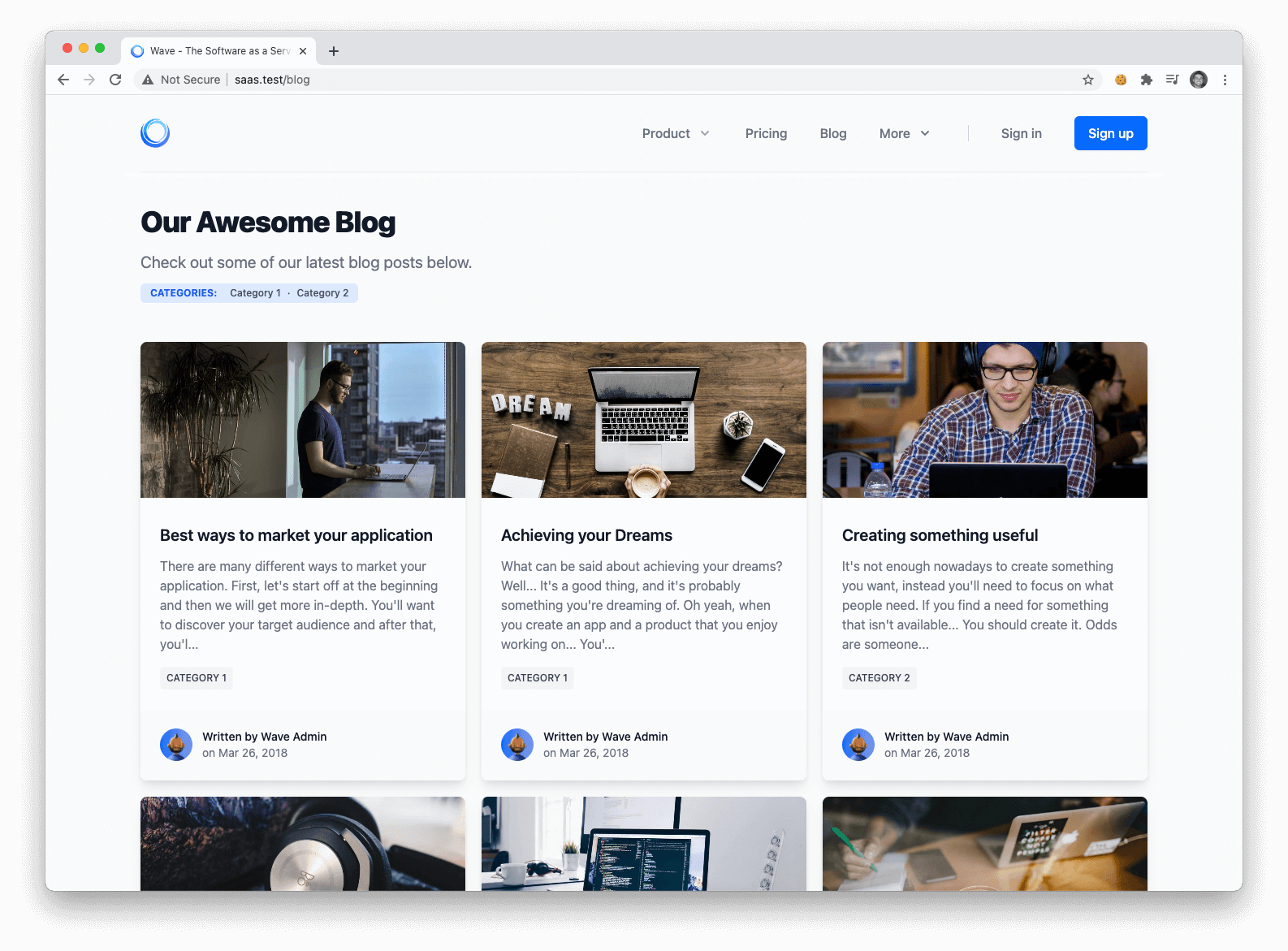
After installing Wave, you will also have a blog located at the `/blog` route. You can modify or edit this theme file located at `resources/views/themes/{theme_folder}/blog/index.blade.php`
|
|
|
|
|
|
|
|
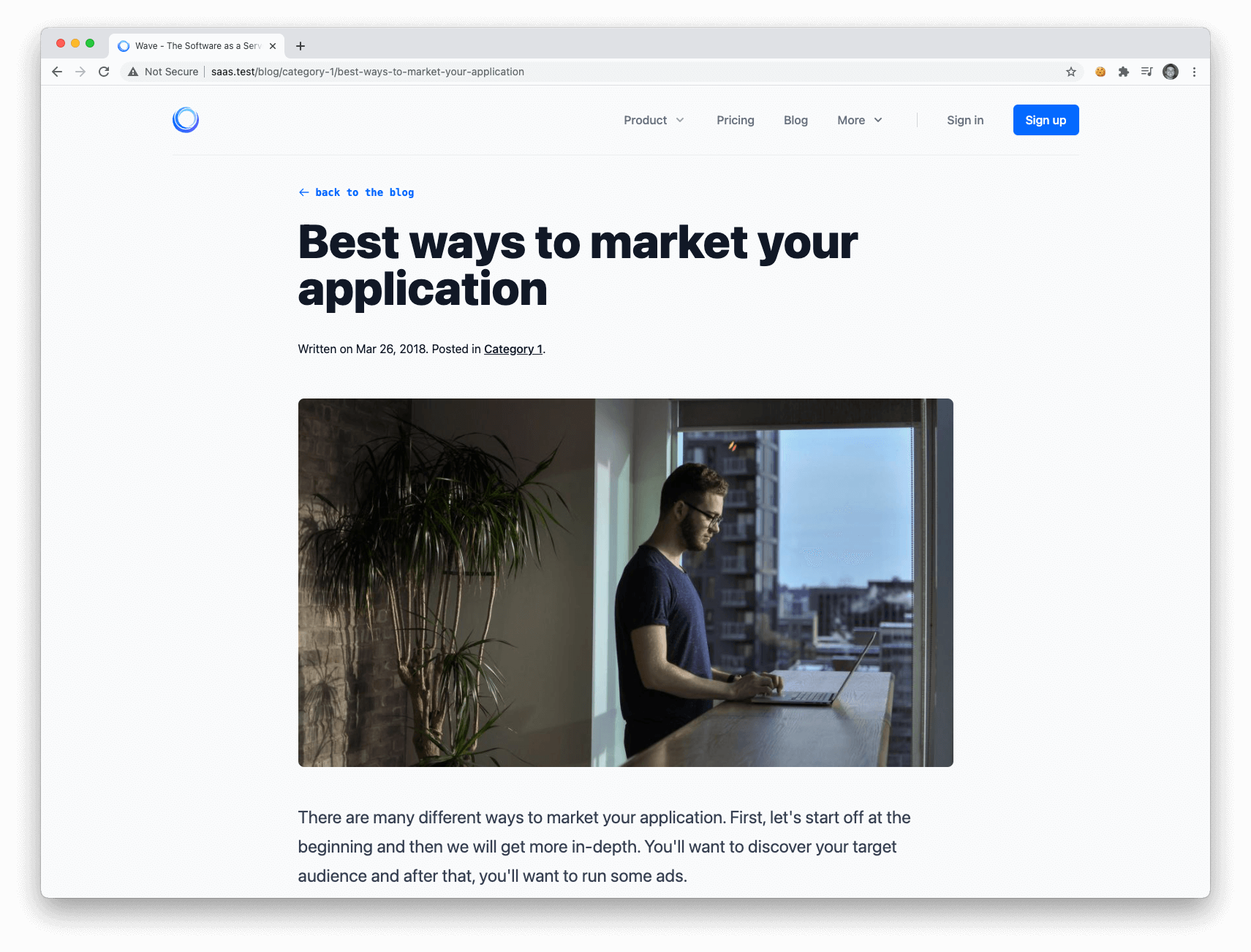
You can also view a single post by clicking the thumbnail or title of the post. You can modify or edit the theme post view at `resources/views/themes/{theme_folder}/blog/post.blade.php`
|
|
|
|
|
|
|
|
<a name="posts-admin"></a>
|
|
### Posts Admin
|
|
|
|
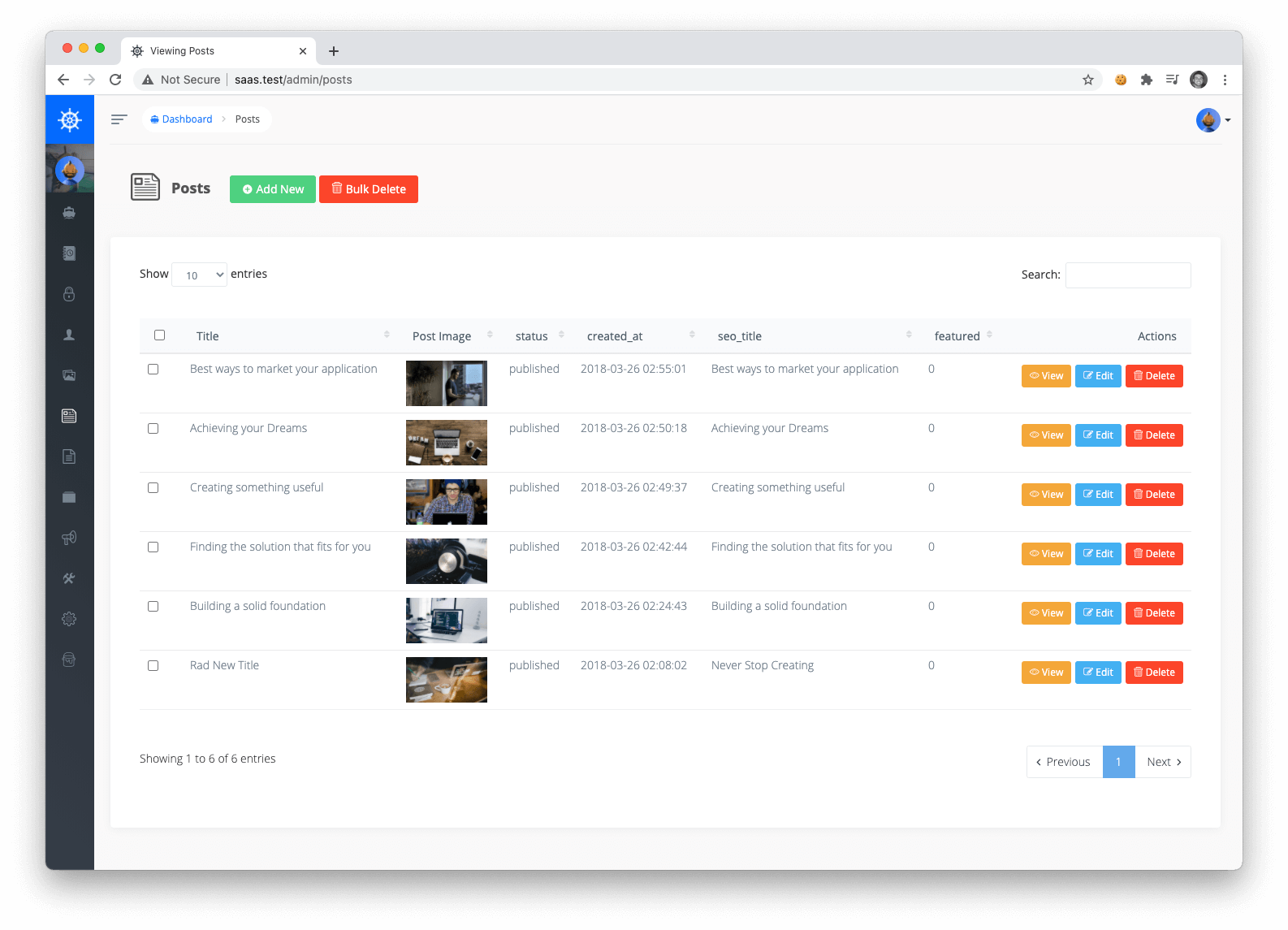
You can edit, add, or delete posts in your admin by visiting `/admin/posts`. To create a new post you can click the `Add New` button:
|
|
|
|
|
|
|
|
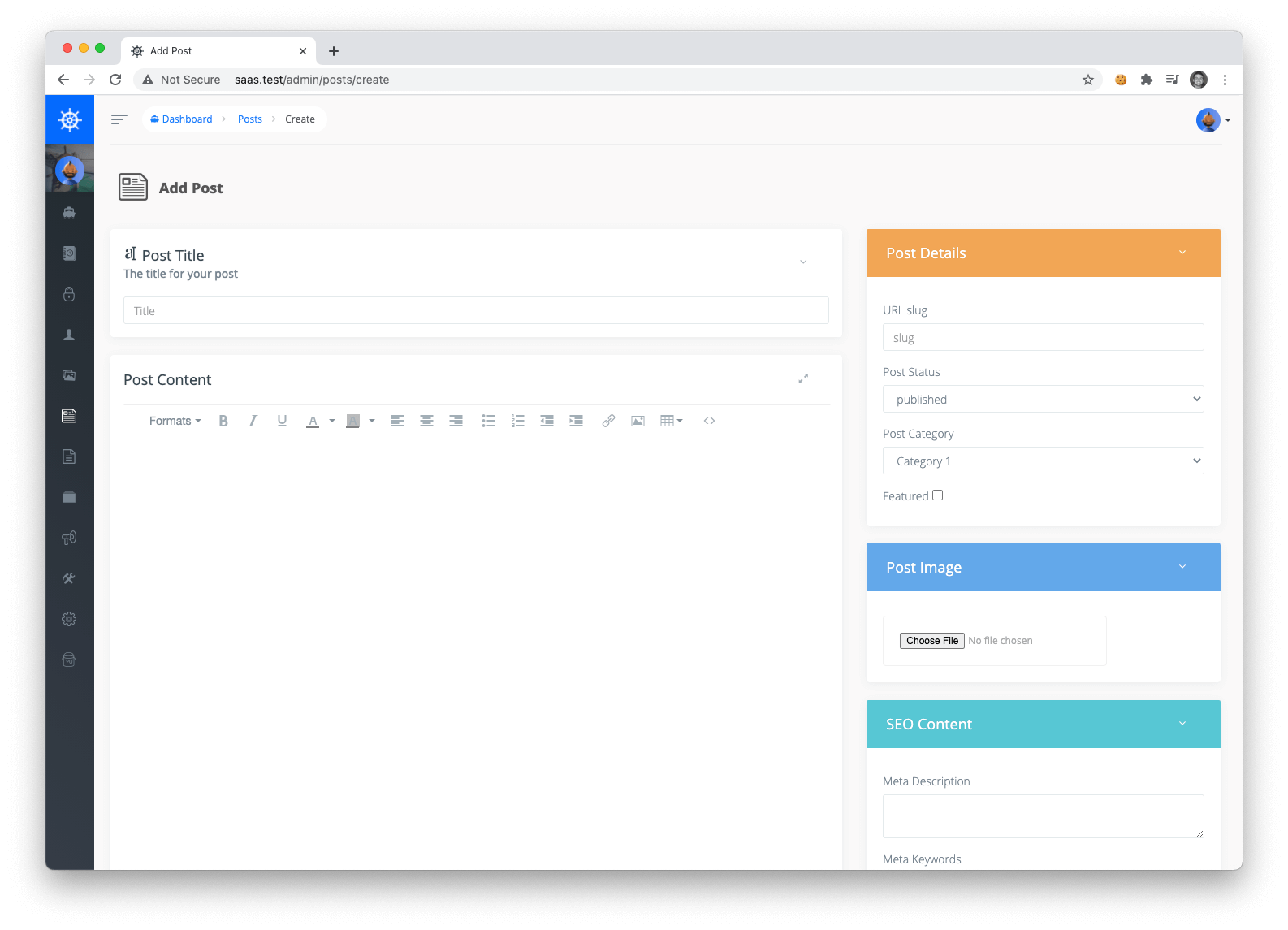
Then, you'll need to fill out your new post information and click save. Only Posts with a status of `PUBLISHED` will show up on the front-end.
|
|
|
|
|
|
|
|
<a name="posts-categories"></a>
|
|
### Post Categories
|
|
|
|
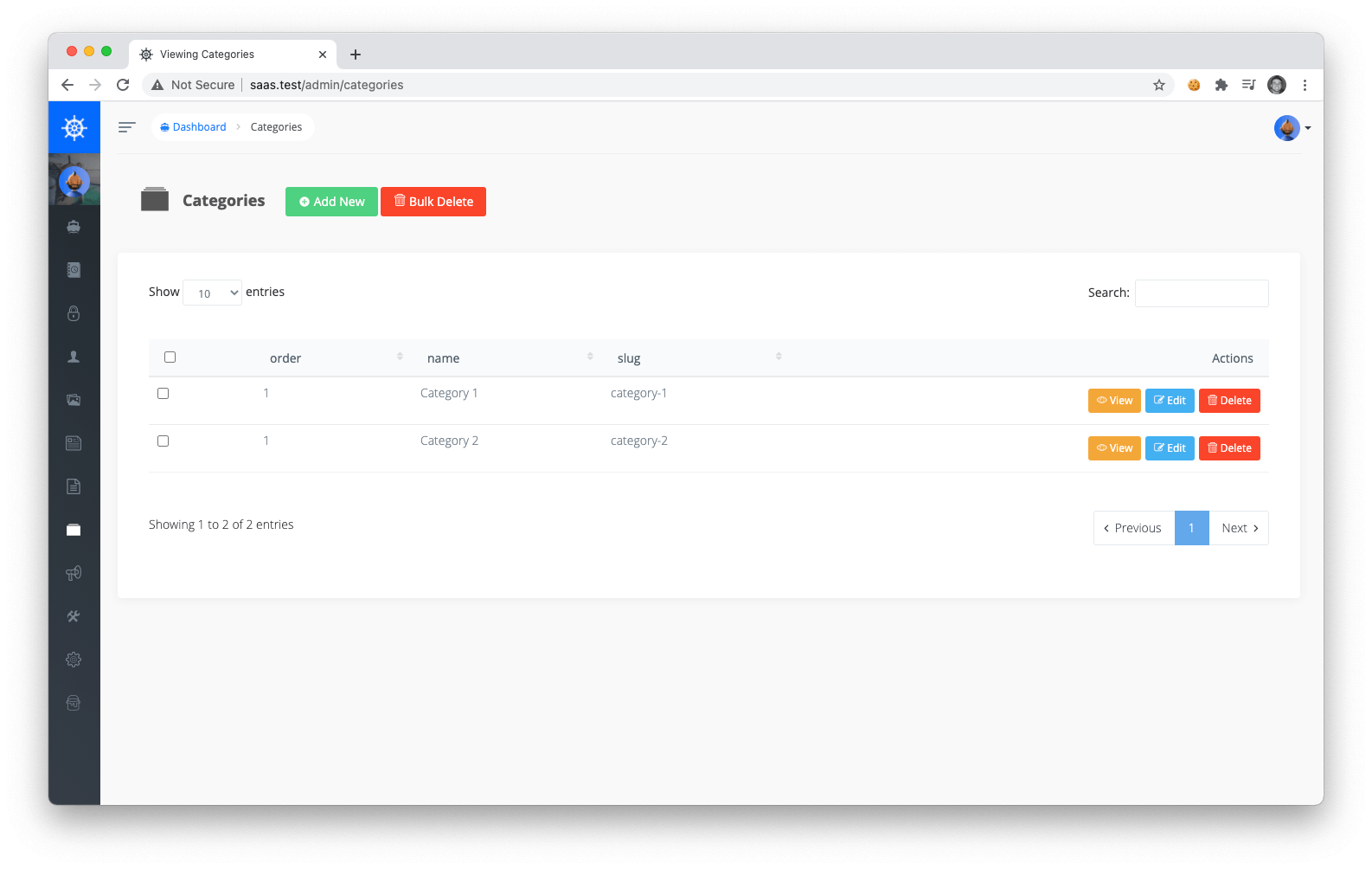
You can also choose to Add, Edit or Delete post categories by visiting the Admin Post Categories at `/admin/categories`.
|
|
|
|
|
|
|
|
After adding a new category, you will be able to create a new post and categorize it in that specific category.
|