
169 lines
5.8 KiB
Markdown
169 lines
5.8 KiB
Markdown
# Installation
|
|
|
|
- [Install Wave](#install-wave)
|
|
- [Create a New Repo](#create-repo)
|
|
- [Deploy to DigitalOcean](#deploy-to-digitalocean)
|
|
- [Logging into Your Application](#login)
|
|
|
|
---
|
|
|
|
<a name="install-wave"></a>
|
|
## Install Wave
|
|
|
|
Before installing wave you will need to make sure you have the minimum <a href="https://laravel.com/docs/deployment#server-requirements" target="_blank">server requirements</a> and then you'll want to clone the repo to your machine.
|
|
|
|
### Clone the Repo
|
|
|
|
You can clone the repo onto your local machine with the following command:
|
|
|
|
```
|
|
git clone https://github.com/thedevdojo/wave.git project_name
|
|
```
|
|
|
|
Change `project_name` with the name of your project. Optionally, you may want to create a [new Github Repo for your project](#create-repo).
|
|
|
|
---
|
|
|
|
Ok, now we can easily install Wave with these **4 simple steps**:
|
|
|
|
### 1. Create a New Database
|
|
|
|
During the installation we need to use a MySQL database. You will need to create a new database and save the credentials for the next step.
|
|
|
|
### 2. Copy the `.env.example` file
|
|
|
|
We need to specify our Environment variables for our application. You will see a file named `.env.example`, you will need to duplicate that file and rename it to `.env`.
|
|
|
|
Then, open up the `.env` file and update your *DB_DATABASE*, *DB_USERNAME*, and *DB_PASSWORD* in the appropriate fields. You will also want to update the *APP_URL* to the URL of your application.
|
|
|
|
```bash
|
|
APP_URL=http://wave.test
|
|
|
|
DB_CONNECTION=mysql
|
|
DB_HOST=127.0.0.1
|
|
DB_PORT=3306
|
|
DB_DATABASE=wave
|
|
DB_USERNAME=root
|
|
DB_PASSWORD=
|
|
```
|
|
|
|
|
|
### 3. Add Composer Dependencies
|
|
|
|
Next, we will need to install all our composer dependencies by running the following command:
|
|
|
|
```php
|
|
composer install
|
|
```
|
|
### 4. Run Migrations and Seeds
|
|
|
|
We need to migrate our database structure into our database, which we can do by running:
|
|
|
|
```php
|
|
php artisan migrate
|
|
```
|
|
<br>
|
|
Finally, we will need to seed our database with the following command:
|
|
|
|
```php
|
|
php artisan db:seed
|
|
```
|
|
<br>
|
|
|
|
🎉 And that's it! You will now be able to visit your URL and see your Wave application up and running.
|
|
|
|
|
|
> For security measures you may want to regenerate your application key, be sure to run the following command below to secure your site before going live.
|
|
|
|
```php
|
|
php artisan key:generate
|
|
```
|
|
|
|
---
|
|
|
|
<a name="create-repo"></a>
|
|
|
|
## Create a New Repo
|
|
|
|
In most cases it's a good idea to create a separate repo for your new project. This will also make it easier to [deploy our application to DigitalOcean](#deploy-to-do).
|
|
|
|
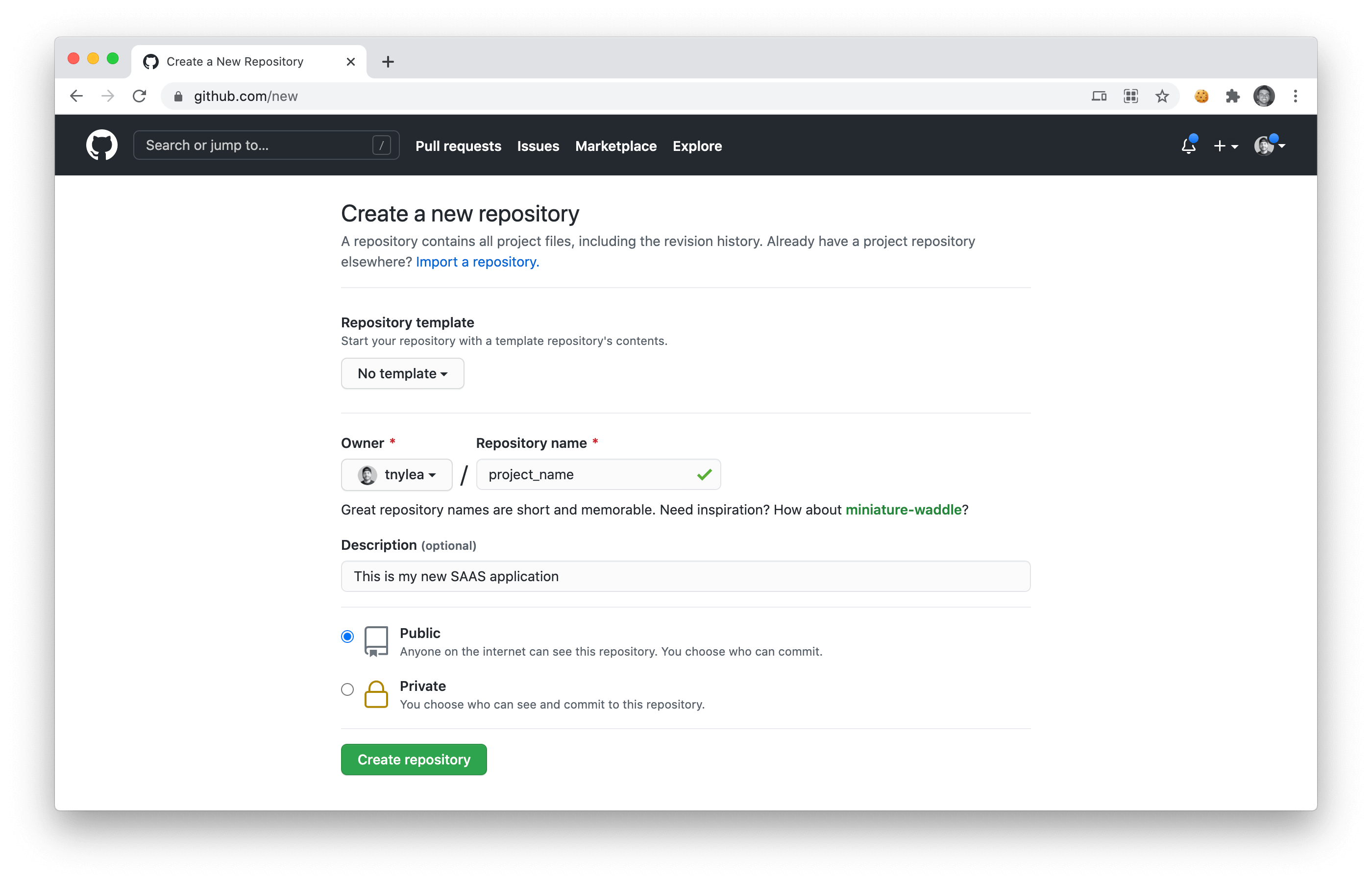
If you are logged into your Github account, you can go to <a href="https://github.com/new" target="_blank">https://github.com/new</a> to create a new repository. Give it a name associated with your SAAS and click **Create Repository**
|
|
|
|
|
|
|
|
After you click on create repo, you will need to open up the command line and `cd` into your `project_name` folder and run the following commands, replacing `tnylea/project_name` with the name of your repo:
|
|
|
|
```
|
|
rm -rf .git/
|
|
git init
|
|
git add --all
|
|
git commit -m "first commit for my SAAS"
|
|
git branch -M main
|
|
git remote add origin https://github.com/tnylea/project_name.git
|
|
git push -u origin main
|
|
```
|
|
|
|
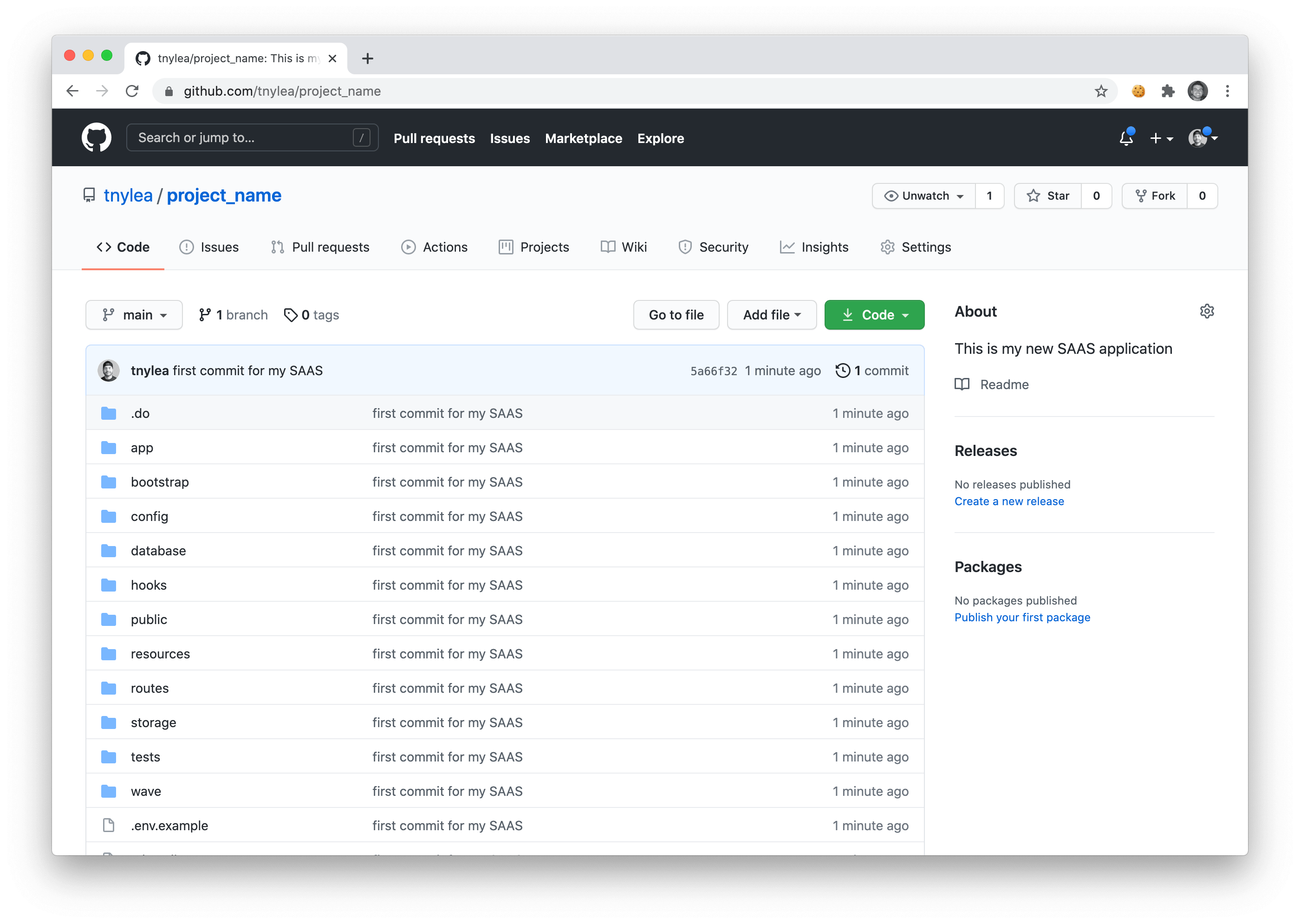
If you refresh your Github Repository you should see that it now contains the files for your new SAAS application.
|
|
|
|
|
|
|
|
---
|
|
|
|
|
|
<a name="deploy-to-digitalocean"></a>
|
|
## Deploy to Digital Ocean
|
|
|
|

|
|
|
|
If you use Digital Ocean, you're in luck. You can easily start surfing the Wave(s) on DigitalOcean with our <a href="https://www.digitalocean.com/products/app-platform/" target="_blank">DO App Platform</a> integration. Not using DigitalOcean? <a href="https://m.do.co/c/dc19b9819d06" target="_blank">Get $100 in free DigitalOcean credit here</a>. 💵
|
|
|
|
Here are 3 simple steps to get started with your new SAAS on Digital Ocean.
|
|
|
|
1. [🔑 Get Your DO API Key](#api-key)
|
|
2. [🚀 Deploy Your App](#deploy-app)
|
|
3. [🤓 Start Building Your SAAS](#start-building)
|
|
|
|
---
|
|
|
|
<a name="api-key"></a>
|
|
### 1. 🔑 Get Your DO API Key
|
|
|
|
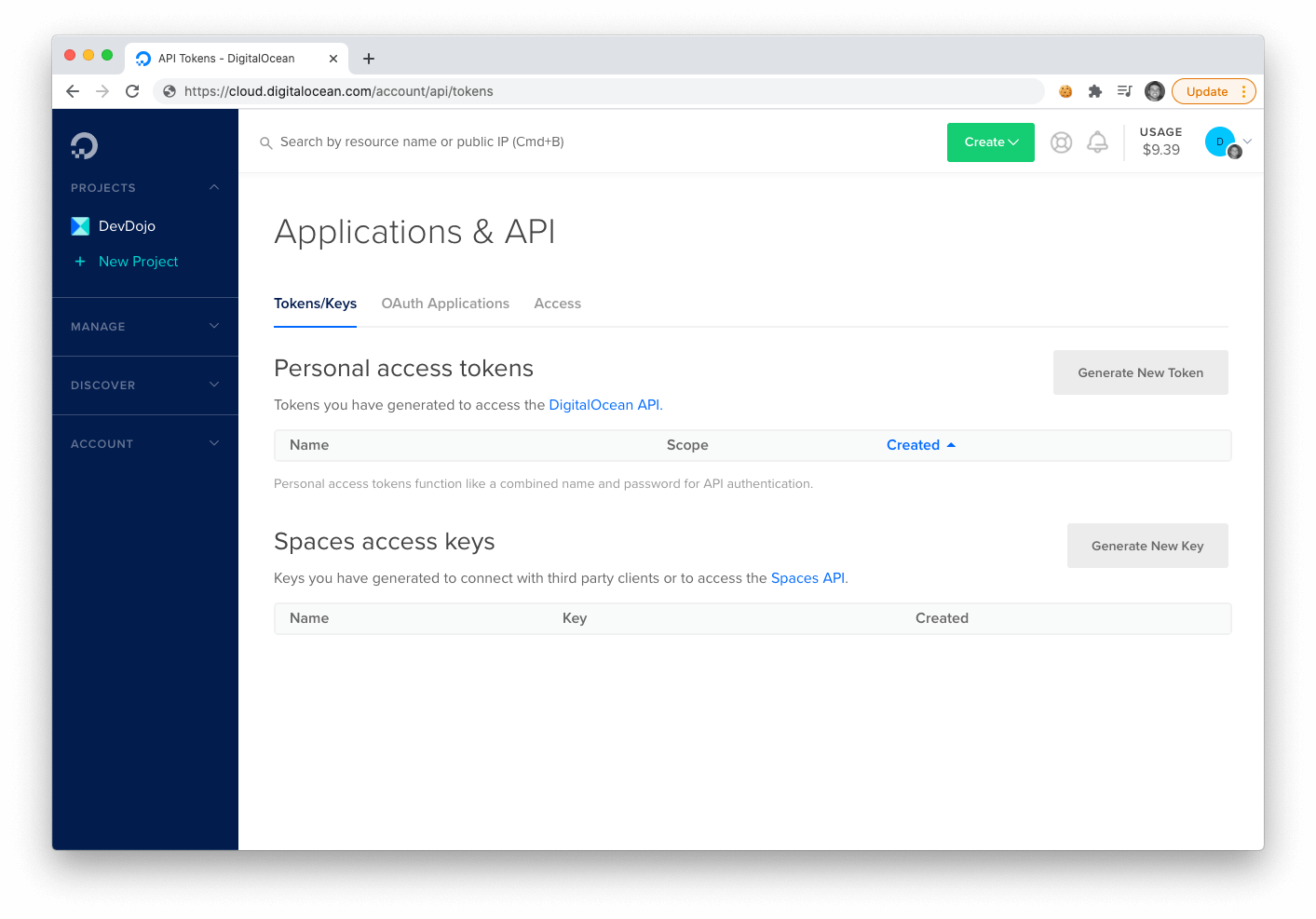
In order to deploy to DigitalOcean you'll need to get your API Key from the following URL: [https://cloud.digitalocean.com/account/api/tokens](https://cloud.digitalocean.com/account/api/tokens)
|
|
|
|
|
|
|
|
Click on the **Generate New Token**, button and save your new token for the next step.
|
|
|
|
<a name="deploy-app"></a>
|
|
### 2. 🚀 Deploy Your App
|
|
|
|
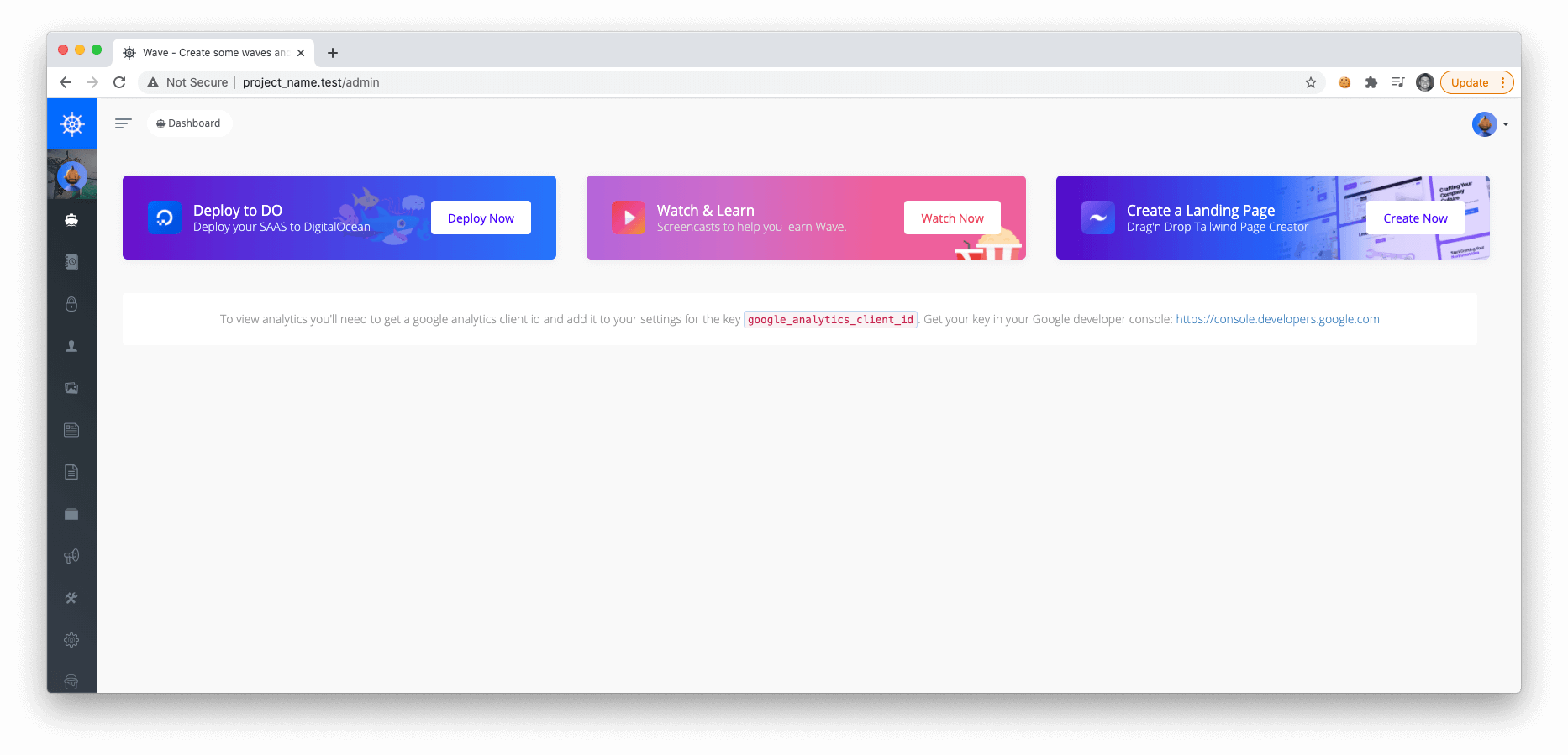
Ok, now you're ready to deploy your application to DigitalOcean. Login to your application admin and click on the **Deploy Now** button in the first card:
|
|
|
|
|
|
|
|
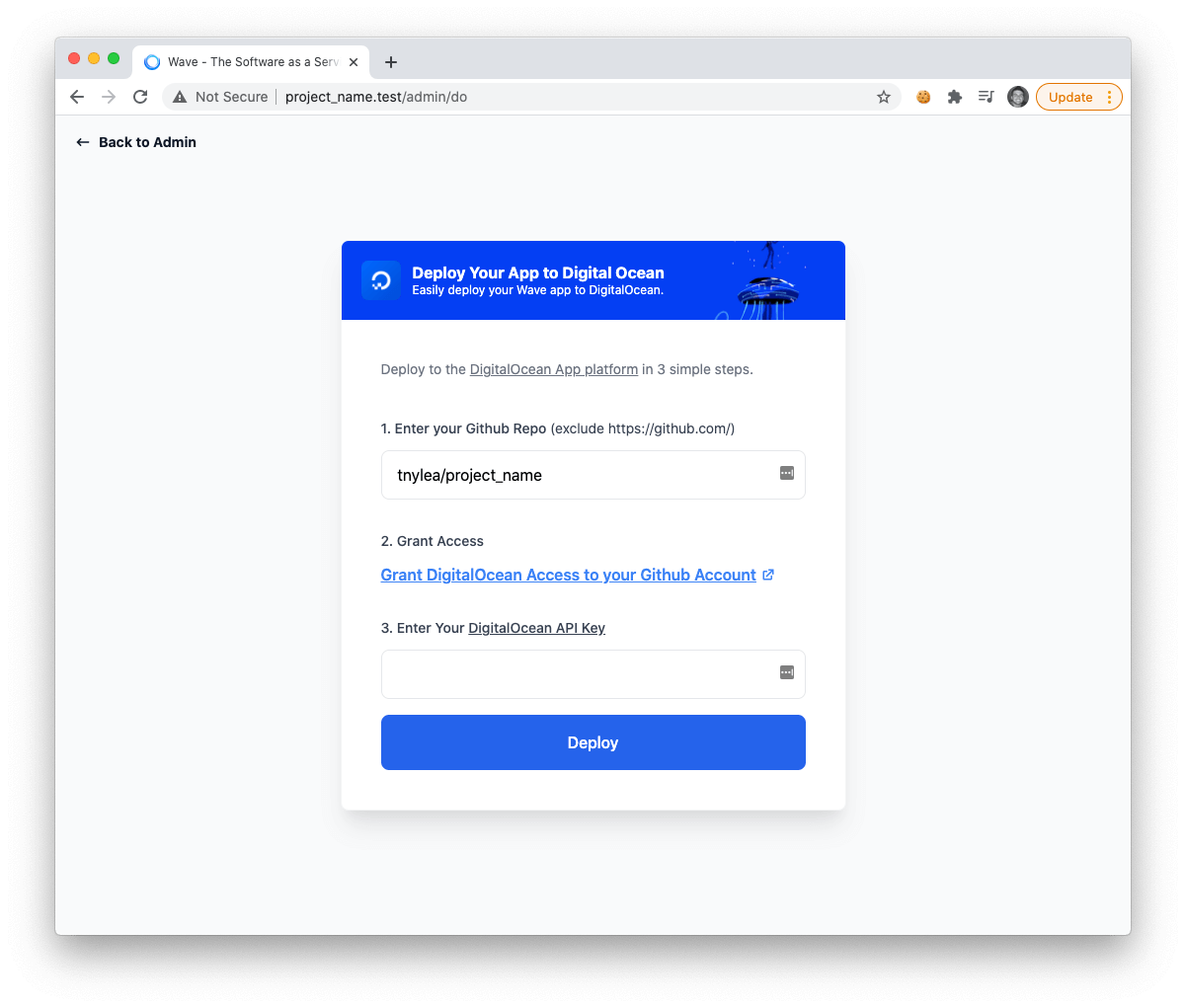
Next, you'll see another page where you need to enter in your **repo**, **give DO access to your Repo**, and then enter in your **api key**.
|
|
|
|
|
|
|
|
After you enter those fields and press deploy, you will see a success message. Now you can navigate to your digital ocean app platform dashboard and you'll see your new application.
|
|
|
|
<a name="start-building"></a>
|
|
### 3. 🤓 Start Building Your SAAS
|
|
|
|
That's it! You are now ready to start building your SAAS and deploy it to DigitalOcean.
|
|
|
|
---
|
|
|
|
If you want to learn more about setting up Wave and support the ongoing development of Wave you may want to consider becoming a <a href="https://devdojo.com/pro">DevDojo Pro</a> user. Together we can make this project even more awesome 😎
|
|
|
|
|
|
<a name="login"></a>
|
|
## Logging into your Application
|
|
|
|
After installing Wave you can login with the following default credentials:
|
|
|
|
- **email**: admin@admin.com
|
|
- **password**: password
|
|
|
|
After logging in you can feel free to change the admin email, username, and password by visiting the settings section in the user menu.
|